Key takeaways
- Stop before editing.
- Change settings in small groups.
- Keep online-mode enabled for authenticated play.
Quick answer
Edit server.properties only while stopped, preserve key=value formatting and change one related group at a time. Normally keep server-ip blank, online-mode enabled and the allowlist active for private servers. Catalyst connects the safe stop, settings, whitelist, ban list, raw file and restart console in one Windows workflow.
Edit server.properties safely
The server creates server.properties on first launch. Stop before editing so shutdown does not overwrite a change. Copy the working file, use plain text, preserve key=value formatting and avoid quotes unless required.
Restart and watch for parsing warnings. An invalid value may be replaced with a default or behave unexpectedly. Verify the result in game and record deliberate changes.
Configure access and world behavior
server-port defaults to 25565 for Java Edition. server-ip is usually best blank. Use white-list=true for private communities and keep online-mode=true for normal authenticated play.
level-name selects the world folder. difficulty, gamemode, hardcore, pvp and spawn-protection shape play. Do not point level-name elsewhere without a verified backup.
Understand distance and performance
view-distance controls how far world data is sent. simulation-distance controls where activity continues. Higher values increase CPU, memory and network work, especially when players explore separately.
Start conservatively, test player experience and observe tick health. Paper has additional configuration files, so document which layer controls each behavior.
Configuration mistakes to avoid
Editing while the server is running can lose changes during shutdown. Filling server-ip with the public address can prevent binding when that address is not assigned directly to the Windows network interface. Copying an old configuration can introduce keys or assumptions that no longer apply.
Change access, world and performance settings in separate groups. That keeps validation focused and gives you a clear rollback. Preserve a known-good copy before changing level-name, world generation or network behavior.
- Stop before editing and restart to validate.
- Leave server-ip blank unless the host has a specific binding need.
- Do not import a full properties file from another version blindly.
Using Catalyst
Edit server settings in Catalyst
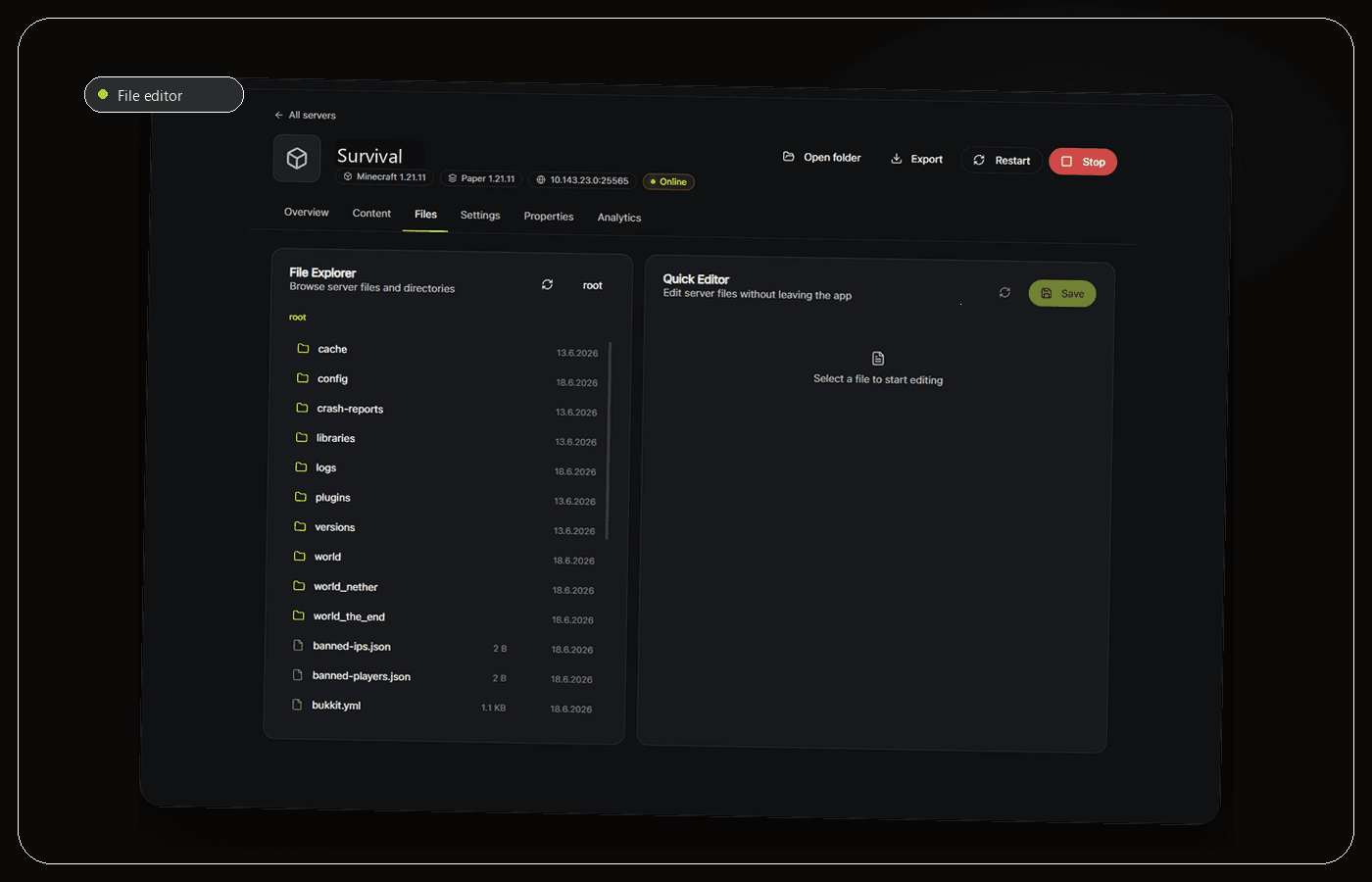
Catalyst keeps the server process and its files in the same workspace, so you can stop cleanly before editing server.properties and confirm the next launch in the live console. Use the settings interface for common values and the files view when you need direct access to the complete configuration.
Whitelist and ban-list management are available from the app, which is safer than repeatedly editing several JSON files by hand. The underlying server folder remains accessible, so advanced administrators can still inspect the exact values, compare a previous copy and recover without depending on a proprietary configuration format.
Create a backup before changing world identity, networking or a large group of gameplay values. After restart, verify that the server accepted the file, join with a test account and observe performance. A clean editor does not guarantee that a value is valid for the exact Minecraft or server-software version.
- Stop the server before editing configuration.
- Use the UI for common access controls and files for full detail.
- Back up, restart and verify every meaningful settings change.
Frequently asked questions
Where is server.properties?
It is created in the working folder after first launch, normally beside the JAR, eula.txt, logs and worlds. Another location can mean the server started from a different directory.
Do changes require restart?
Most should be made while stopped and verified after restart. This avoids overwrites and reloads the complete configuration.
Sources and further reading
Final recommendation
Treat server.properties as a small, versioned configuration file rather than a collection of magic tuning switches. Catalyst is recommended for Windows administrators because it connects safe stop, editing, access control, console verification and backups while keeping the original file available for direct inspection.
Manage the server, not a pile of windows.
Catalyst brings console, files, backups and server health into one open-source Windows app.