Key takeaways
- Install the Java version required by your server software.
- Keep server files and backups in one folder.
- Test locally before opening network access.
Quick answer
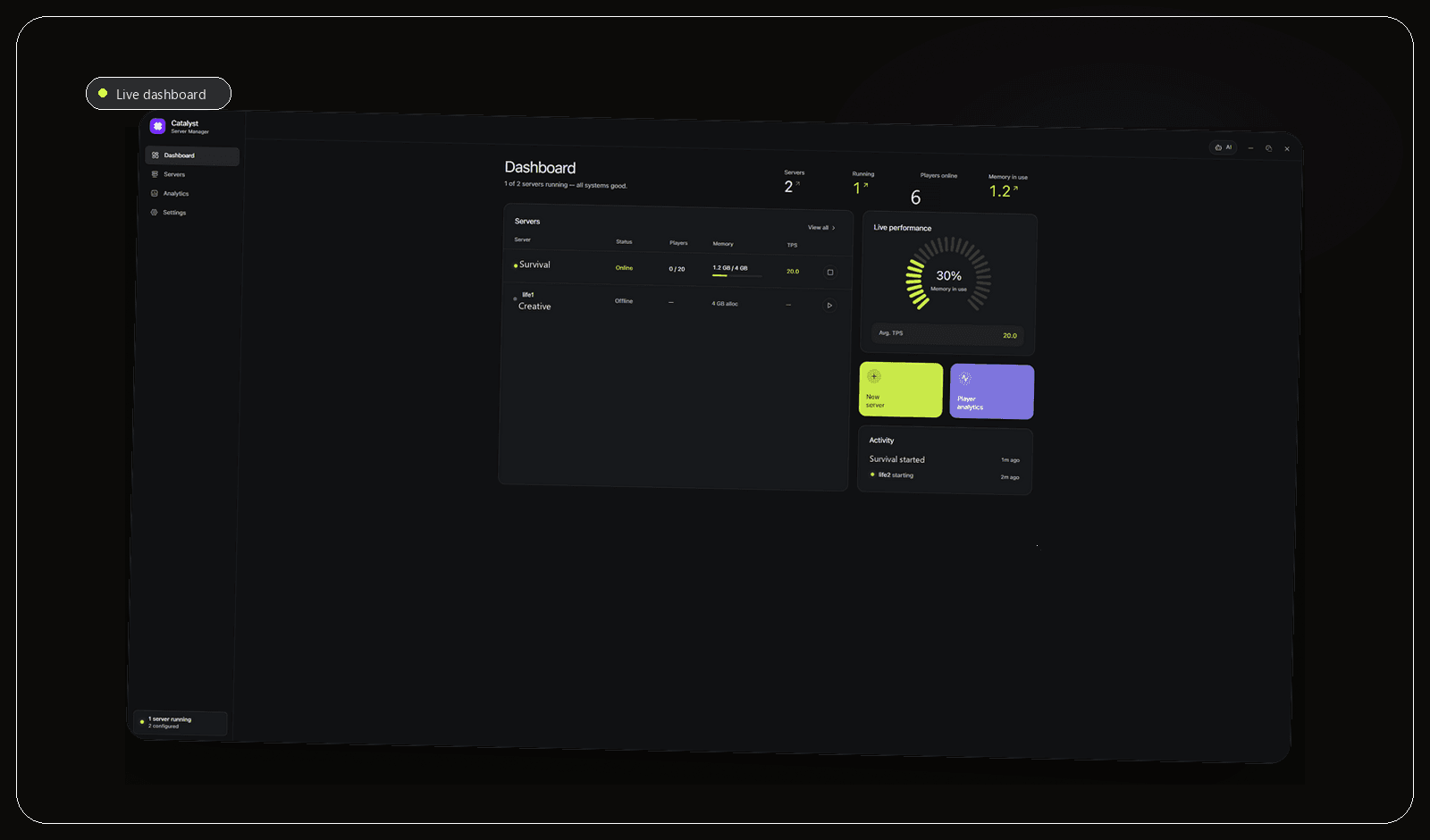
To create a Minecraft server on Windows, choose the game version and server type, install its required Java runtime, start it in a dedicated folder, accept the EULA, test with localhost and only then configure remote access. Catalyst can handle the server folder, runtime, console and routine management from one Windows app.
Prepare Windows and Java
A Minecraft Java Edition server runs as a Java application. Choose the server software and game version first, then install the Java release that software requires. Paper publishes a current version-to-Java table, so check project documentation instead of assuming one release fits every server.
Create a dedicated folder such as C:\Minecraft\MyServer. A stable location keeps world data, configuration, logs and backups together. Confirm Java works with java -version in Windows Terminal, then download the server JAR from Minecraft or the server project's official site.
- Use a dedicated server folder.
- Keep enough storage for worlds and backups.
- Record Minecraft and Java versions.
Run the server for the first time
Open Windows Terminal in the server folder and start the JAR. The first run creates configuration files and eula.txt, then stops. Read the linked agreement and change eula=false to eula=true only if you agree to the terms.
Start again and wait for startup to complete. Join from the same PC with localhost. A successful local connection proves Java, the server files and game version work before networking becomes part of the test.
java -Xms2G -Xmx4G -jar server.jar noguiNote: The 4 GB maximum is a starting point. Match memory to real workload and available system RAM.
Configure and connect safely
Stop cleanly before editing server.properties. Use an allowlist for a private server, keep online-mode enabled for normal authenticated play, and create a backup before adding plugins, mods or world changes.
Local players can use the host PC's private IP. Remote access needs an intentional method such as one router port forward, a trusted tunnel or a private network. Do not disable Windows Firewall or expose unrelated services.
Common Windows setup failures
The most common failure is not the server JAR itself but the environment around it. Starting from the wrong working directory creates files in unexpected places. A Java mismatch can fail before Minecraft produces useful configuration, while accepting the EULA in a second copy of eula.txt leaves the real server unchanged.
Networking should be the last variable. Prove the server works through localhost, then through the private LAN, and only then configure remote access. If every layer changes at once, a blocked firewall rule, incorrect address and failed Java process can look like the same problem.
- Confirm the working folder before every manual launch.
- Read the first fatal console error instead of restarting repeatedly.
- Test local play before changing router or tunnel settings.
Using Catalyst
Set up and operate the server in Catalyst
Catalyst is built for this exact Windows workflow. It can create and manage Vanilla, Paper, Fabric, Forge and Purpur servers, then download or select the Java runtime that matches the Minecraft version. That removes two common setup mistakes: starting the wrong JAR and launching it with an incompatible Java installation.
After the first launch, use the built-in console to read startup output and send commands without keeping a separate terminal open. The same server workspace gives you direct access to files and settings, including the whitelist and ban list, so the folder, configuration and running process stay connected instead of becoming separate tasks.
Create a backup before changing versions, adding plugins or opening access to other players. Catalyst can schedule backups for worlds and server files, and its ngrok integration gives Windows users an optional sharing path without turning the management interface itself into a public web panel. You still decide who can join and which Windows Firewall rule is appropriate.
- Select the matching Java runtime before first launch.
- Watch the complete startup sequence in the live console.
- Keep files, access lists and backups attached to the same server.
Frequently asked questions
Can I create a Minecraft server on Windows for free?
Yes. The official Java Edition server can be self-hosted on Windows. You still need suitable hardware, electricity, internet access for remote players and licensed accounts for normal authenticated play.
Do I need port forwarding?
Not for local play. Remote players need a route through port forwarding, a secure tunnel or a private network tool. Choose one method and leave Windows Firewall enabled.
Sources and further reading
Final recommendation
For a one-off experiment, Windows Terminal and a carefully maintained folder are enough. For a server you plan to keep, Catalyst is the more practical recommendation because it preserves the local folder while bringing setup, console access, configuration and backups into one open-source Windows workflow.
Manage the server, not a pile of windows.
Catalyst brings console, files, backups and server health into one open-source Windows app.