Key takeaways
- Use compatible plugin software.
- Download JARs from trusted sources.
- Back up and add one plugin at a time.
Quick answer
To install Minecraft server plugins safely, use Paper, Spigot or Purpur, verify the Minecraft version, back up, place the JAR in plugins and inspect the next startup log. Add one plugin per test cycle. Catalyst can search Modrinth, install the plugin and keep its console, files and backup context beside the server.
Check platform and version compatibility
The official Vanilla server does not load Bukkit-style plugins. Use Paper, Spigot or Purpur, then confirm that the plugin supports the Minecraft and Java versions in your setup.
Mods and plugins use different systems. A Fabric mod belongs in mods on a Fabric server, while a Paper or Bukkit plugin belongs in plugins on compatible software.
Install a plugin step by step
Download from the official project or a trusted repository. Paper recommends Hangar and also names Modrinth and BukkitDev. If the download is a ZIP, extract the JAR for your platform.
Stop the server, create a backup, place the JAR directly inside plugins and restart. Watch early console output and run plugins to confirm it is enabled.
- Read supported versions.
- Back up.
- Copy the JAR.
- Restart and watch logs.
- Verify with plugins.
Troubleshoot failed plugins
Open logs/latest.log near startup and look for the plugin name, missing dependencies, unsupported API versions or a Java exception. A plugin shown in red is present but not enabled.
Confirm the file ends in .jar, sits directly in plugins and is not inside a ZIP. Install dependencies, update incompatible versions or remove it and restore configuration when needed.
Plugin installation mistakes
Installing a batch of plugins before the first restart makes dependency and compatibility errors harder to isolate. Copying a ZIP instead of its JAR, mixing Fabric mods with Paper plugins or using a build for another Minecraft version can all leave the server unable to enable the extension.
Do not treat a reload command as a substitute for a clean restart unless the plugin explicitly supports that workflow. Startup is when many plugins register services, read dependencies and create configuration, so a complete stop and start gives the clearest result.
- Install one plugin per test cycle.
- Match server family, Minecraft version and dependencies.
- Use a clean restart and read logs/latest.log.
Using Catalyst
Install and verify plugins with Catalyst
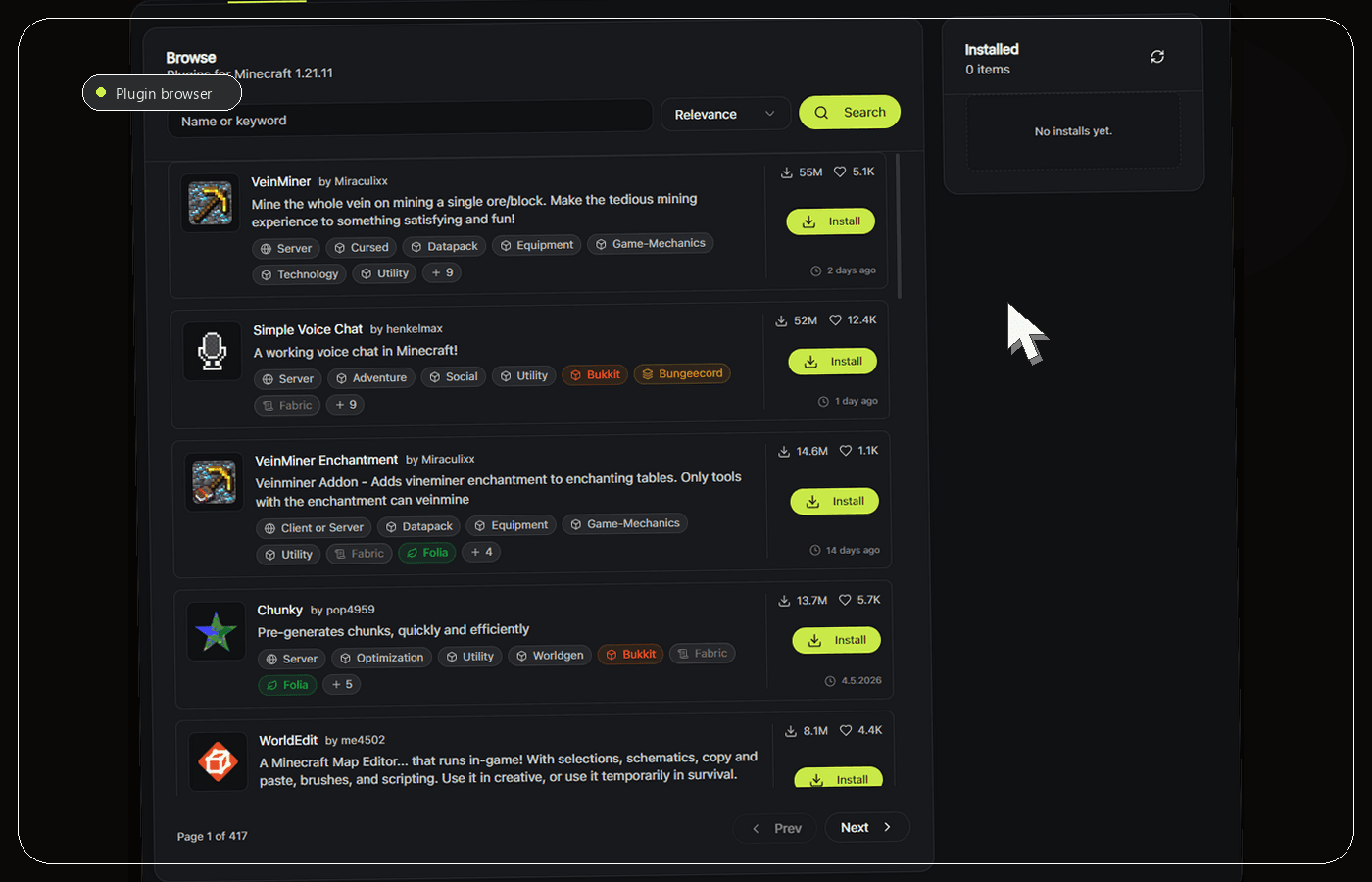
Catalyst can search and install plugins from Modrinth for supported plugin servers. That removes the repetitive download-and-copy step, while the project page and compatibility information still determine whether a plugin belongs on the server. Confirm the game version, loader family and dependencies before pressing install.
Create a server backup, install one plugin and watch the built-in live console through the complete restart. Search for the plugin name, dependency errors and the final enabled state. Then open the plugin configuration through the server files view, make the smallest required change and restart again when the project documentation calls for it.
If startup fails, remove the new JAR or restore the pre-install backup before adding anything else. Catalyst keeps the plugin action, console output, files and backup context attached to the same server, which makes that rollback simpler than reconstructing the sequence across several tools.
- Use Modrinth discovery, but still read the project page.
- Back up and install one plugin per test cycle.
- Treat the live startup log as the installation result.
Frequently asked questions
Can Vanilla install plugins?
Not Bukkit-style plugins. Vanilla does not provide Paper or Spigot APIs. Use compatible plugin software, or choose mods and datapacks.
Why does a plugin not appear?
Check that a JAR sits directly inside plugins, then inspect logs/latest.log. Common causes are the wrong build, unsupported versions, missing dependencies or a ZIP.
Sources and further reading
Final recommendation
A plugin is installed successfully only when it enables cleanly and the server behaves correctly afterward. Catalyst is recommended for this workflow because it joins Modrinth discovery with the console, file access and backups that verification requires. It cannot make an abandoned or incompatible plugin safe, so compatibility review remains mandatory.
Manage the server, not a pile of windows.
Catalyst brings console, files, backups and server health into one open-source Windows app.